Adding an Event to Google Calendar from a WordPress Event Post
A simple solution for adding a "Add to Google Calendar" button to WordPress event posts using ACF (Advanced Custom Fields). The whole solution is PHP-based — no extra JavaScript needed.
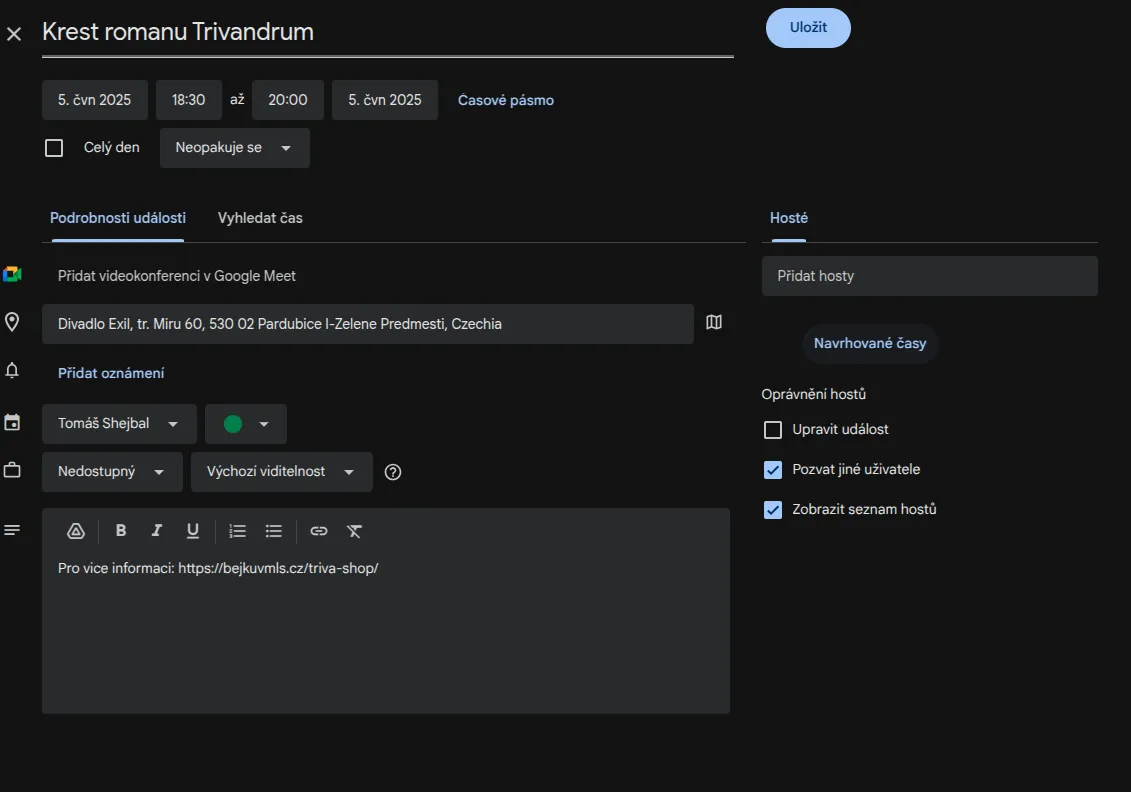
Last updated: 2 June 2025
☝️ If you don't need to pull event data from ACF and you're just adding one or two events manually, this solution is overkill. Simply adjust this link (without diacritics for better readability) and put it behind a button:
https://calendar.google.com/calendar/render?action=TEMPLATE&text=Krest%20romanu%20Trivandrum&dates=20250605T183000/20250605T200000&details=Pro%20vice%20informaci:%20https://bejkuvmls.cz/triva-shop/&location=Divadlo%20Exil,%20tr.%20Miru%2060,%20530%2002%20Pardubice%20I-Zelene%20Predmesti,%20CzechiaStarting setup
- WordPress
- Advanced Custom Fields (ACF) plugin
- An "Events" custom post type created via ACF with the following fields:
- ACF date/time field for the event start (
akce_termin) - ACF field for event duration in minutes (
akce_delka-akce) - ACF field for event location (
akce_misto)
- ACF date/time field for the event start (
Step 1: PHP function to prepare the data
First, we create a PHP function that prepares all the data needed for Google Calendar. This is reusable functionality, so we'll place the code in a custom plugin (I prefer this approach — I keep theme files for visual/presentation things that aren't generally portable).
function get_event_data_4_google_calendar($post_id = null) {
        if (empty($post_id)) {
            $post_id = get_the_ID();
        }

        // post title
        $event_title = get_the_title($post_id);

        // data from ACF
        $event_start_date = get_field('akce_termin', $post_id);
        $event_duration = get_field('akce_delka-akce', $post_id);
        $event_location = get_field('akce_misto', $post_id);

        // convert date to Google Calendar format
        if (empty($event_start_date)) {
            return '';
        }

        // get WordPress timezone
        $wp_timezone = new DateTimeZone(get_option('timezone_string'));
        $start_datetime = new DateTime($event_start_date, $wp_timezone);

        // create event end time
        if (empty($event_duration)) {
            $event_duration = 60; // default event length: 1 hour
        }

        $end_datetime = clone $start_datetime;
        $end_datetime->modify('+' . $event_duration . ' minutes');

        // format for Google Calendar URL
        $start_formatted = $start_datetime->format('Ymd\\THis');
        $end_formatted = $end_datetime->format('Ymd\\THis');

        // event description
        $event_description = 'More info at: ' . get_permalink($post_id);

        // return data for Google Calendar
        return array(
            'title' => $event_title,
            'startDate' => $start_formatted,
            'endDate' => $end_formatted,
            'description' => $event_description,
            'location' => $event_location
        );
}
☝️ Note: Don't remove the timezone handling from the code above. Without it, the event start time will be off. 😉
Next, we create a function to build the Google Calendar URL. It calls the data preparation function above: get_event_data_4_google_calendar.
// build the Google Calendar URL
function get_google_cal_url($post_id = null) {
        if (empty($post_id)) {
                $post_id = get_the_ID();
        }

        // get data for Google Calendar
        $event_data = get_event_data_4_google_calendar($post_id);

        // build Google Calendar URL
        $google_url = "<https://calendar.google.com/calendar/render?action=TEMPLATE>";
        $google_url .= "&text=" . urlencode($event_data['title']);
        $google_url .= "&dates=" . $event_data['startDate'] . "/" . $event_data['endDate'];
        $google_url .= "&details=" . urlencode($event_data['description']);
        if (!empty($event_data['location'])) {
                $google_url .= "&location=" . urlencode($event_data['location']);
        }

        return $google_url;
}
Step 2: Creating the Google Calendar button
Now we can create a button (or anything else) that uses the data from our function. You can place this code directly in the (child) template for the given post type. If you use a page builder that supports PHP, you can insert the code directly on the page. You can also wrap it in a shortcode, which WordPress itself supports natively.
Using PHP code:
<?php

$post_id = get_the_ID();
$google_url = get_google_cal_url($post_id);

echo '<button
    class="akce-button"
    onclick="window.open(\\'' . esc_url($google_url) . '\\', \\'_blank\\')"
    aria-label="Add event to Google Calendar"
    type="button"
    title="Click to add this event to your Google Calendar in a new tab">
    Add to Google Calendar
</button>';

?>
Optional button styling:
.akce-button {
  background: black;
  color: white;
  font-size: 1rem;
  border: solid 1px black;
  border-radius: 0.5rem;
  padding: 0.25rempx 1rem 0.25rem 1rem;
  cursor: pointer;
}

.akce-button:hover {
  background: white;
  color: black;
  border: solid 1px white;
}
Summary
This solution is simple, fast, and requires no JavaScript. It uses Google Calendar's native URL parameter integration. The user clicks the button, gets redirected to Google Calendar with all fields pre-filled, and can easily add the event to their calendar.
Key advantages of this approach:
- Simple to implement.
- Reliable (works in all modern browsers).
- Fast page load (no extra JavaScript).